 Blue Dolphin
 Chapter 1 of 16
First launch
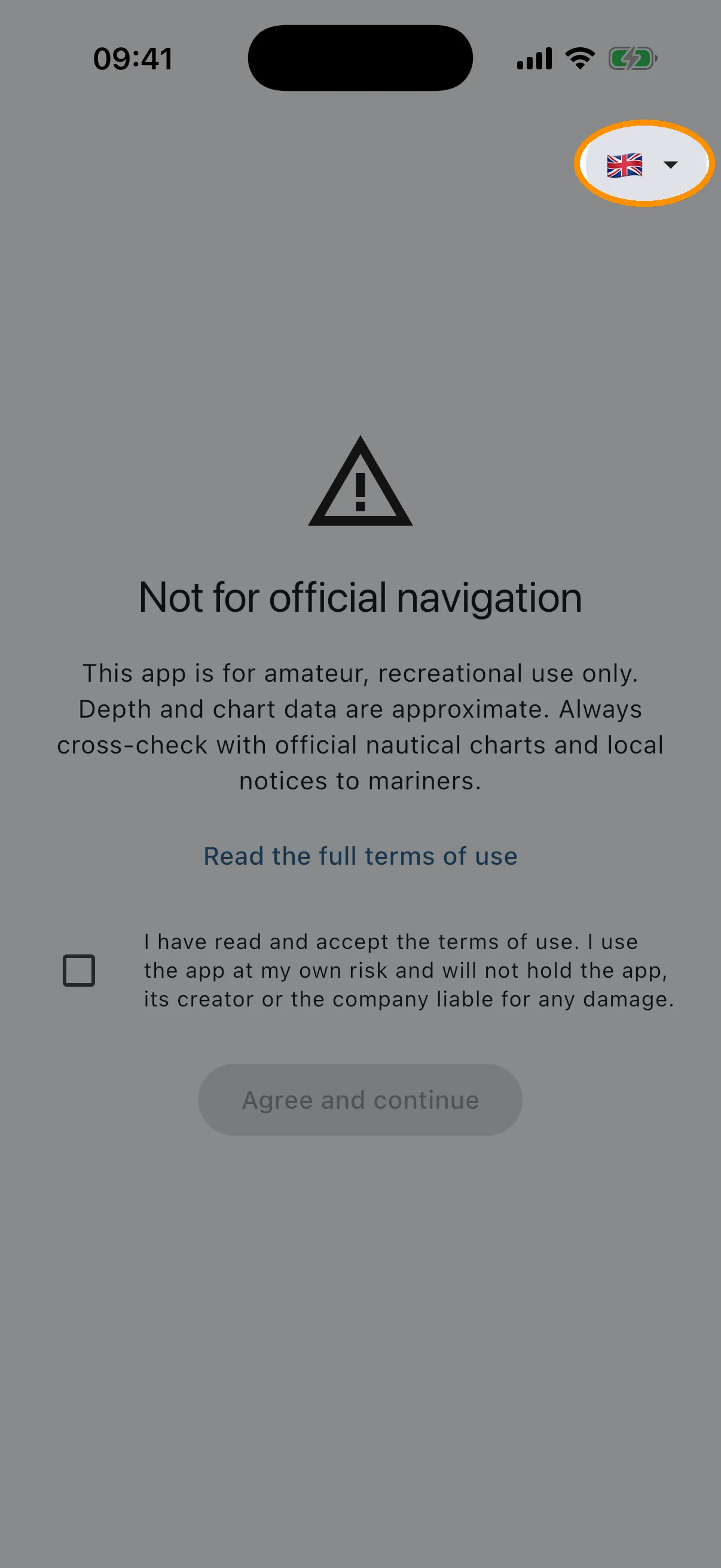
The first time you open Blue Dolphin it shows one screen before anything else: a plain statement that this is a recreational app, not an official navigation product. Read it, tick the checkbox, tap “Agree and continue”. You will not see it again until a bigger update asks you to confirm once more.
Two things worth knowing on this screen:
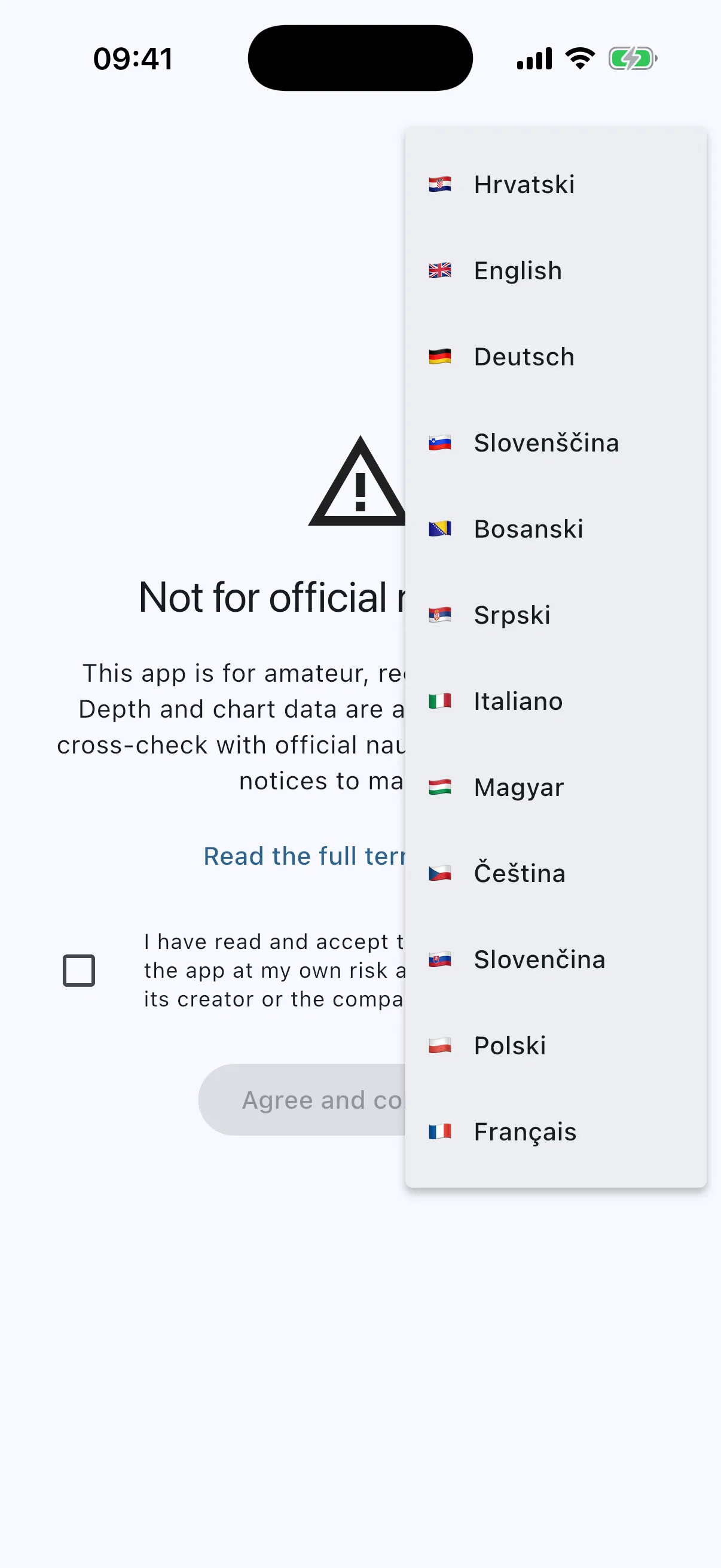
- The flag button in the top-right corner changes the language immediately. The disclaimer switches, and the whole app after it. Blue Dolphin speaks English, Croatian, German, Italian, French, Polish, Czech, Slovak, Slovenian, Hungarian, Bosnian and Serbian.
- “Read the full terms of use” opens the complete terms. They are stored inside the app, so you can read them offline, and later from Settings.
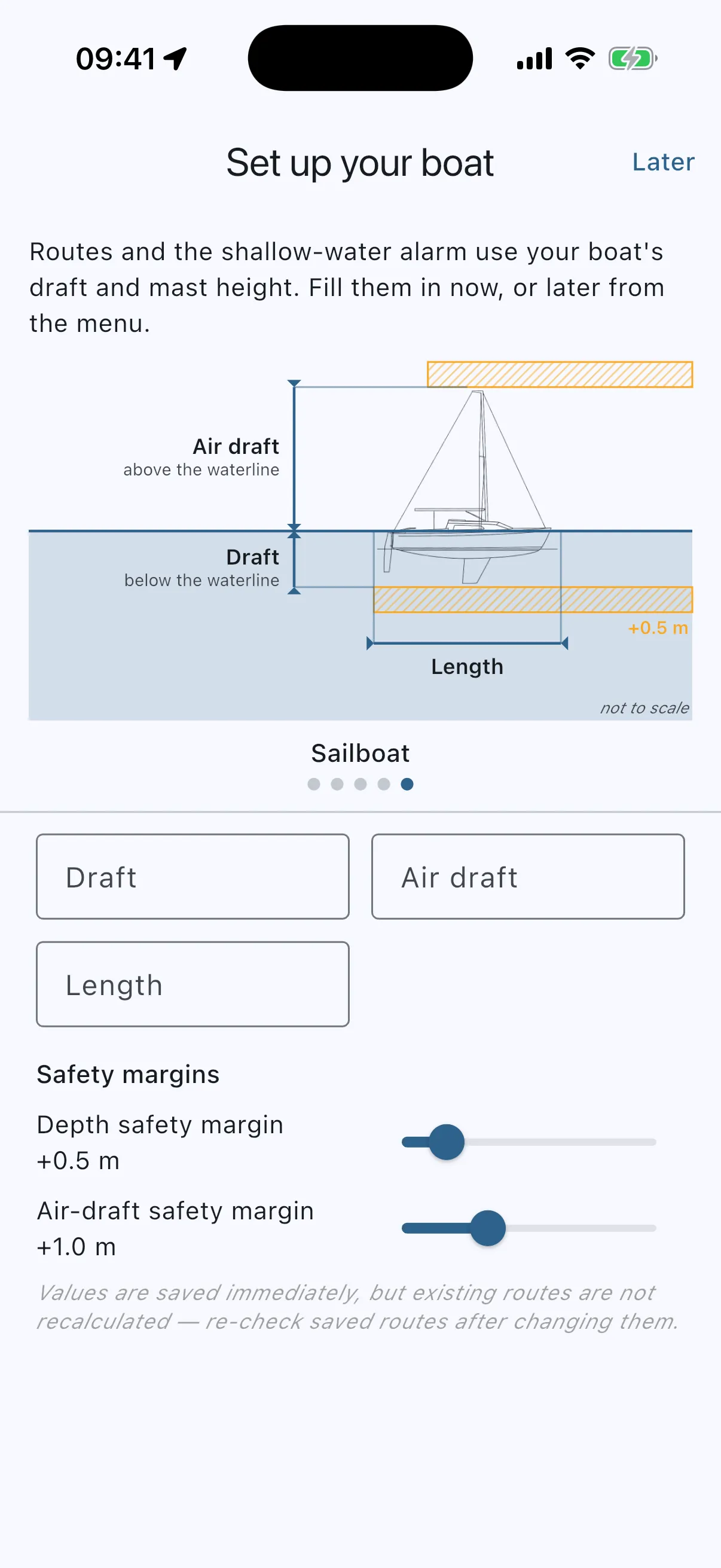
Next, the app asks about your boat, once. Draft and mast height are what the shallow-water alarm and the route planner work with, so this is the one minute that makes the warnings real (see Your boat). In a hurry? “Later” skips it, and the app asks again the first time you plan a route.
Then allow location access when iOS or Android asks. The app needs it to draw your boat on the chart. Your position is used only on the phone (see Privacy). If location is switched off on the phone, a card on the chart says so and its button takes you straight to the phone’s location settings. If you refused the permission, the button opens the app’s own settings instead.
The whole Croatian Adriatic chart is already on your phone. Aeroplane mode, no signal between the islands, nothing changes.
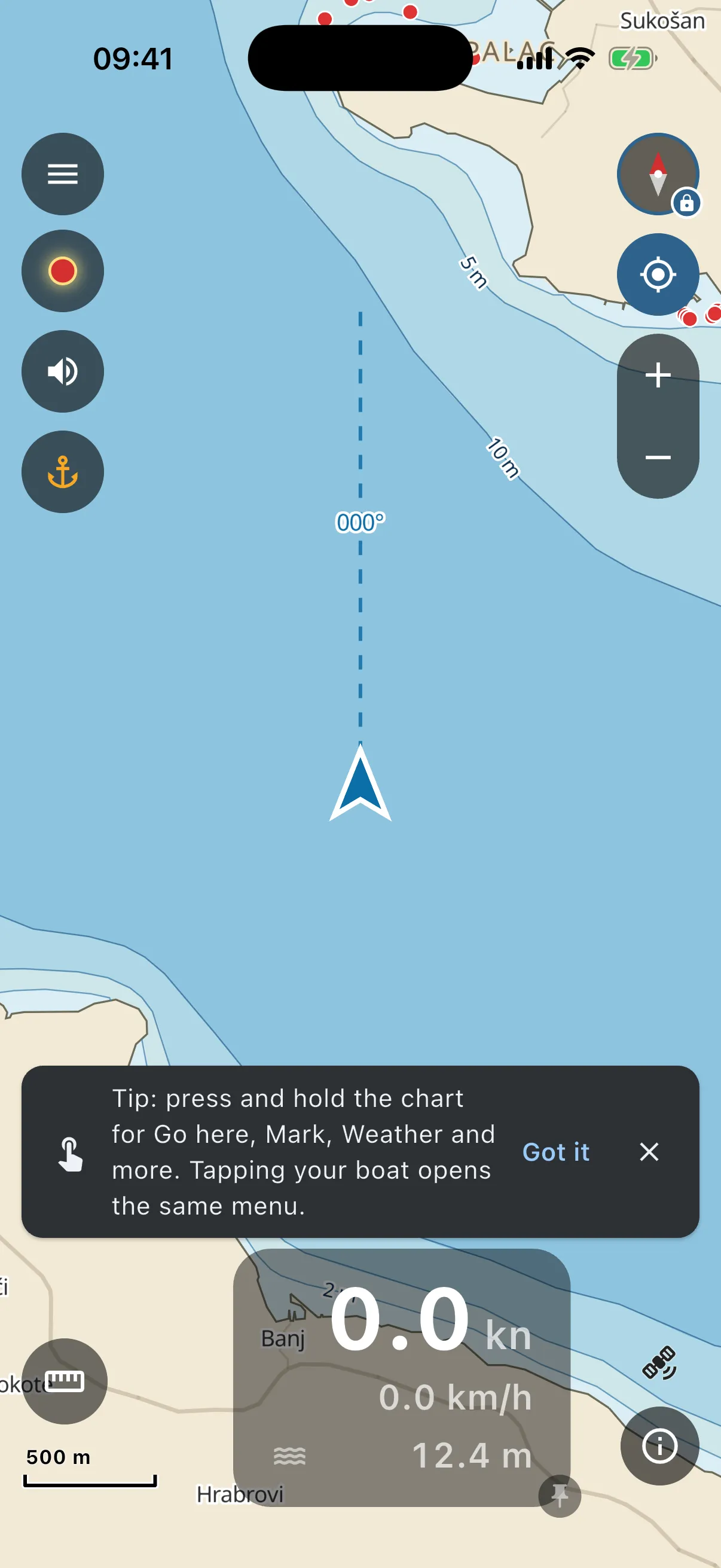
The first time you see the chart, a tip reminds you of the one gesture worth knowing: press and hold the chart for the ring menu (Go here, Mark, Weather, Position). “Got it” and it never shows again.
Lost? Menu → How to use opens this guide, in the app’s language.